How to create automation
What are automations?
Automations allow you to create automated workflows that trigger actions based on customer activity. Instead of manually sending messages, accruing points, or tracking events, you can set up a chain of actions that run automatically when specific conditions are met.
Automations work with all 8 card types and there are no limits on the number of steps in a chain.
Note: For SMS and email actions, you need to connect your messaging services first (Twilio for SMS, Mailgun/SMTP/SendGrid for email).
Available triggers
Triggers are events that start the automation. The full list of available triggers:
Customer events:
Customer created — a new customer profile is created
Customer deleted — a customer profile is deleted
Customer's birthday today — triggers on the customer's birthday
Card events:
Card installed — a customer installs the card on their device
Card expired — the card's expiration date has passed
Card deleted — the card is removed
Card issued — a card is issued to a customer
Card scanned — the card is scanned via the Scanner App
Loyalty activity:
Coupon Redeemed — a coupon card is used
Stamp count reached — customer reaches a specific number of stamps
Points count reached — customer reaches a specific number of points
Rewards count reached — customer earns a specific number of rewards
Used rewards count reached — customer has redeemed a specific number of rewards
Expiring stamps — stamps are about to expire
Expiring bonuses — bonus points are about to expire
Other:
Review left — a customer leaves a feedback review
Moved to RFM segment — a customer moves to a specific RFM segment (e.g., loyal, at risk, lost)
Inbound Webhook — triggered by an external system via webhook
Available actions
Actions are what happens after a trigger fires. You can chain multiple actions together. The full list:
Wait — pause the chain for a specified time before the next action
Condition — add a filter to check specific criteria before proceeding (conditions vary depending on the trigger and card type)
Send Email — send an email to the customer (requires Mailgun, SMTP, or SendGrid)
Send SMS — send an SMS to the customer (requires Twilio)
Send push and web-push — send a push notification to the customer's device
Accrue — add stamps, points, or bonuses to the customer's card
Redeem — subtract stamps, points, or redeem a reward from the customer's card
Send HTTP-request — send data to an external system via HTTP request
Send conversion to Meta Ads — send a conversion event to Meta Ads (via Meta Conversions API)
Change card expiration — update the expiration date of the customer's card
Conditions and filters
Conditions allow you to add logic to your automation — for example, "only if the customer has more than 500 points" or "only if the card status is installed". The available conditions and filters change depending on the trigger and the card type, so you will see different options depending on your setup.
Draft mode vs Working mode
When you create an automation, it starts in Draft mode. In this mode, the automation is saved but not active — it will not trigger any actions. This allows you to build and review the entire chain before going live.
When you are ready, switch the automation to Working mode to activate it. The automation will start processing triggers in real time.
You can switch between Draft and Working mode at any time.
=======
To create automation, go to the section and select “Create automation” in the actions.
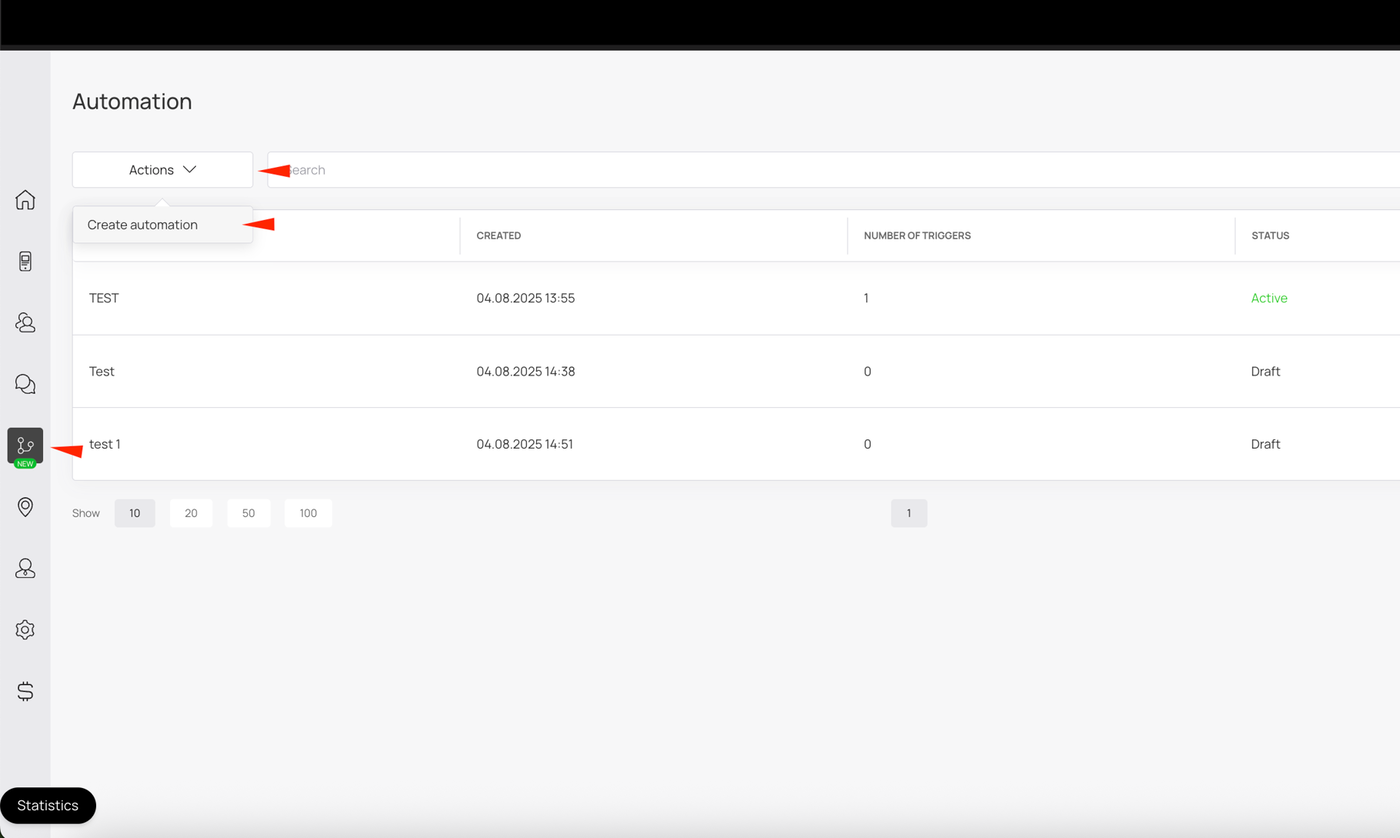
Next to the automation, you can switch it to working mode or draft mode, as well as delete it.
The counter next to the automation name shows how many times the automation has been launched (i.e., how many times the trigger has been activated).
In the automation itself, you can select the trigger that will start the chain, and you can also add filters to the trigger.
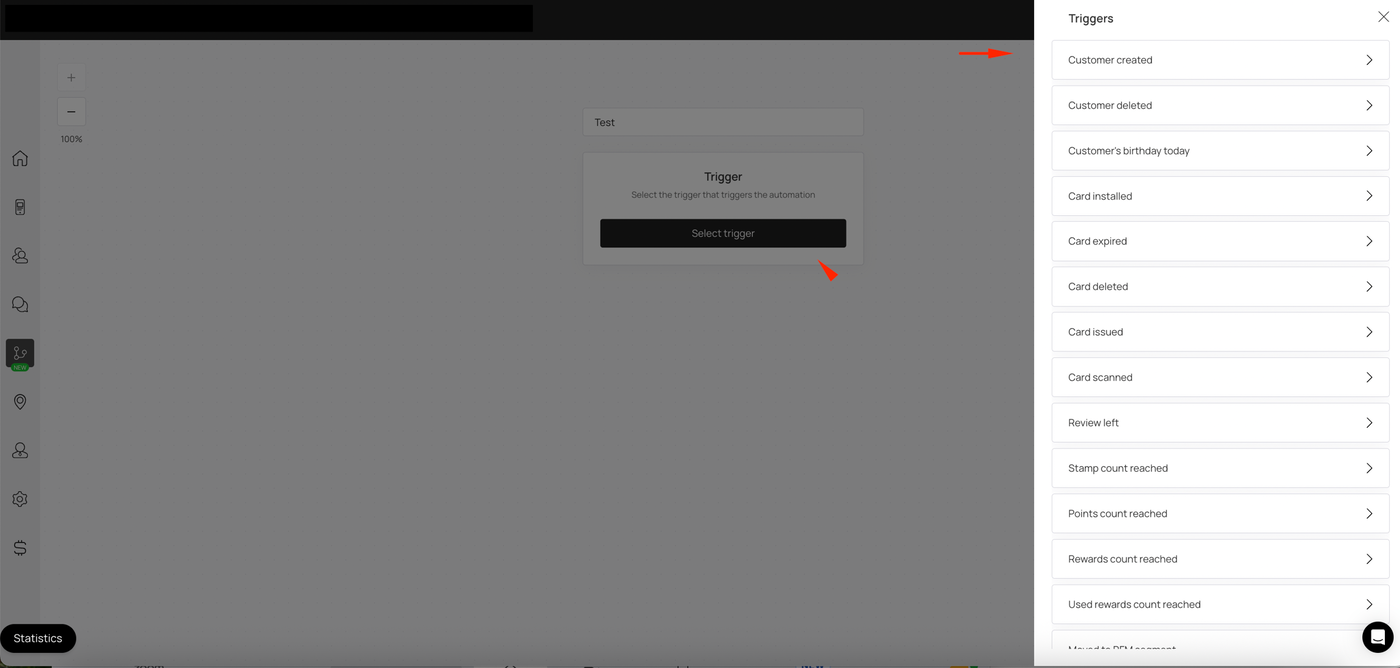
Triggers and card types in automation
Not all triggers work with every type of card. Here’s how it works:
Points count reached → works only with cashback, reward, and gift cards.
Rewards count reached and Used reward count reached → work only with stamp cards.
This way, your automation always matches the right customer activity — collecting points on one type of card, or earning and redeeming stamps in a stamp program.
Filters and card types in automation
The Card bonus balance filter works specifically for reward-type cards. In this case, "reward cards" refers to the Reward card type in the system. You can use this filter to set conditions or actions based on the customer’s current bonus balance. This makes it easy to trigger automated actions — for example, sending a push notification when a customer reaches a certain bonus threshold.
Set up conditions and actions
Then you can add conditions and/or actions.
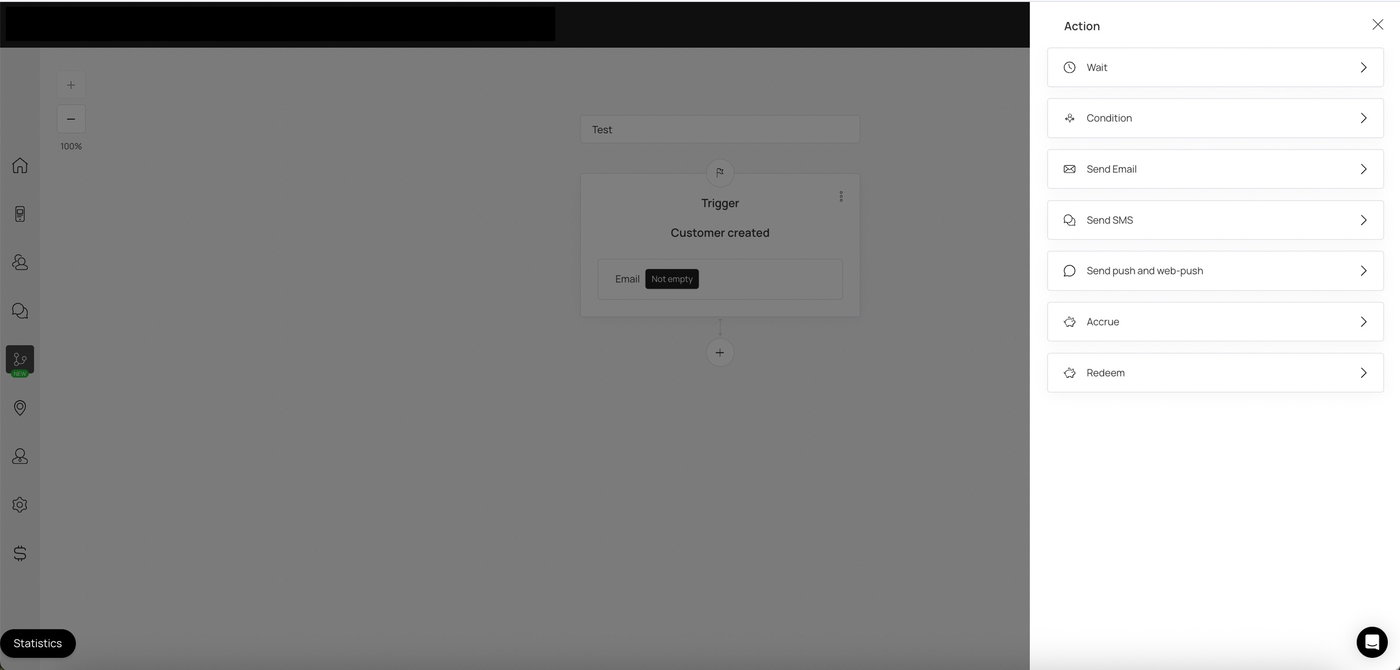
Please note that for SMS/email mailings, you need to connect mailing services in your account.
This allows you to create long branching chains of actions.
Example:
